Install the app and turn on notifications
bemy.fans is a web app, so there's nothing to download from an app store. Add it to your home screen and it opens full screen, like any other app. On iPhone and iPad, that's also the only way to get notifications.
The Get the app page
The quickest way is the Get the app page (bemy.fans/install). It works out which phone, iOS version and browser you have, shows the right steps first, and has a picture for every tap. On a computer it shows a QR code to open it on your phone. You'll also find it under More → Get the app.
When you use bemy.fans in your phone's browser, the app offers this too: the first time as Get the bemy.fans app, with the steps, and after that as a small card. Tap Not now to be asked again in a few days, or Don’t remind me on this phone.
Install on iPhone or iPad
Use Safari. If you followed a link inside X, Instagram or another app, open it in Safari first.
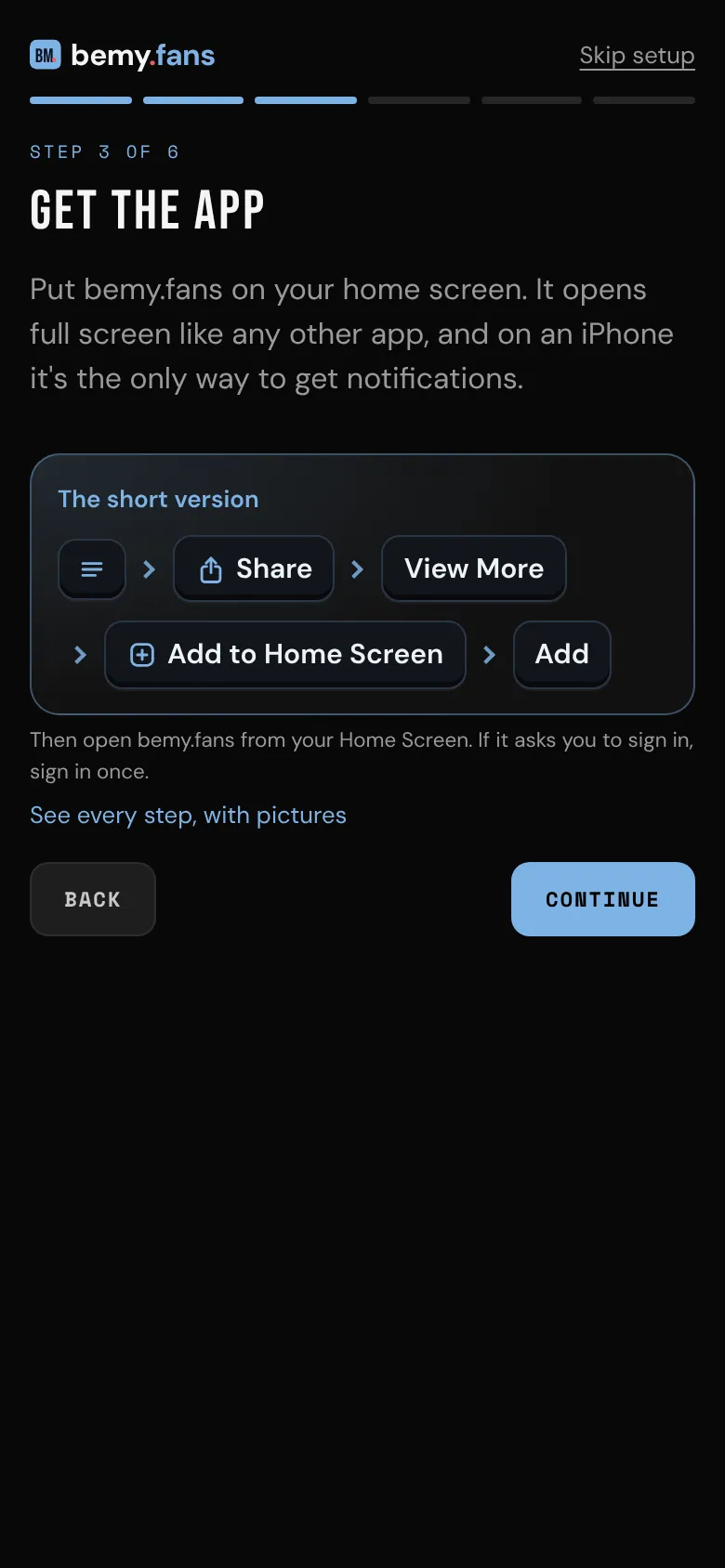
- iOS 27: tap the Page Menu button (three lines) at the left end of the address bar, then Share → View More → Add to Home Screen → Add.
- iOS 26: tap ⋯ next to the address bar, then Share → View More → Add to Home Screen → Add.
- iOS 18 and older: tap Share in Safari's toolbar, then Add to Home Screen → Add.
Keep Open as Web App switched on. Then open bemy.fans from your Home Screen. If it asks you to sign in, sign in once. Not sure which iOS you have? Open Settings → General → About on your iPhone.
Install on Android
- In Chrome, when your phone allows it, there's a one-tap Install bemy.fans button on the Get the app page and in the setup guide. Tap it, then Install.
- Otherwise, tap ⋮ next to the address bar, then Install and create shortcut → Install → Install. Some versions of Chrome call it Add to Home screen or Install app. Choose Install, not Create shortcut.
- In Samsung Internet, tap the menu (three lines), then Add page to → Home screen → Add.
Install on a computer
In browsers that can install web apps, such as Chrome and Edge, go to Settings and tap 📲 Install bemy.fans app in the Push notifications card. The button only shows when your browser can install bemy.fans and it isn't installed yet.
Turn on push notifications
Push notifications reach you even when bemy.fans is closed: new messages, new followers, comments, and creators you follow going live. They're set up per device, so turn them on for each phone or computer you use.
- Go to Settings.
- In the Push notifications card, switch on Push notifications.
- When your phone or browser asks, allow notifications.
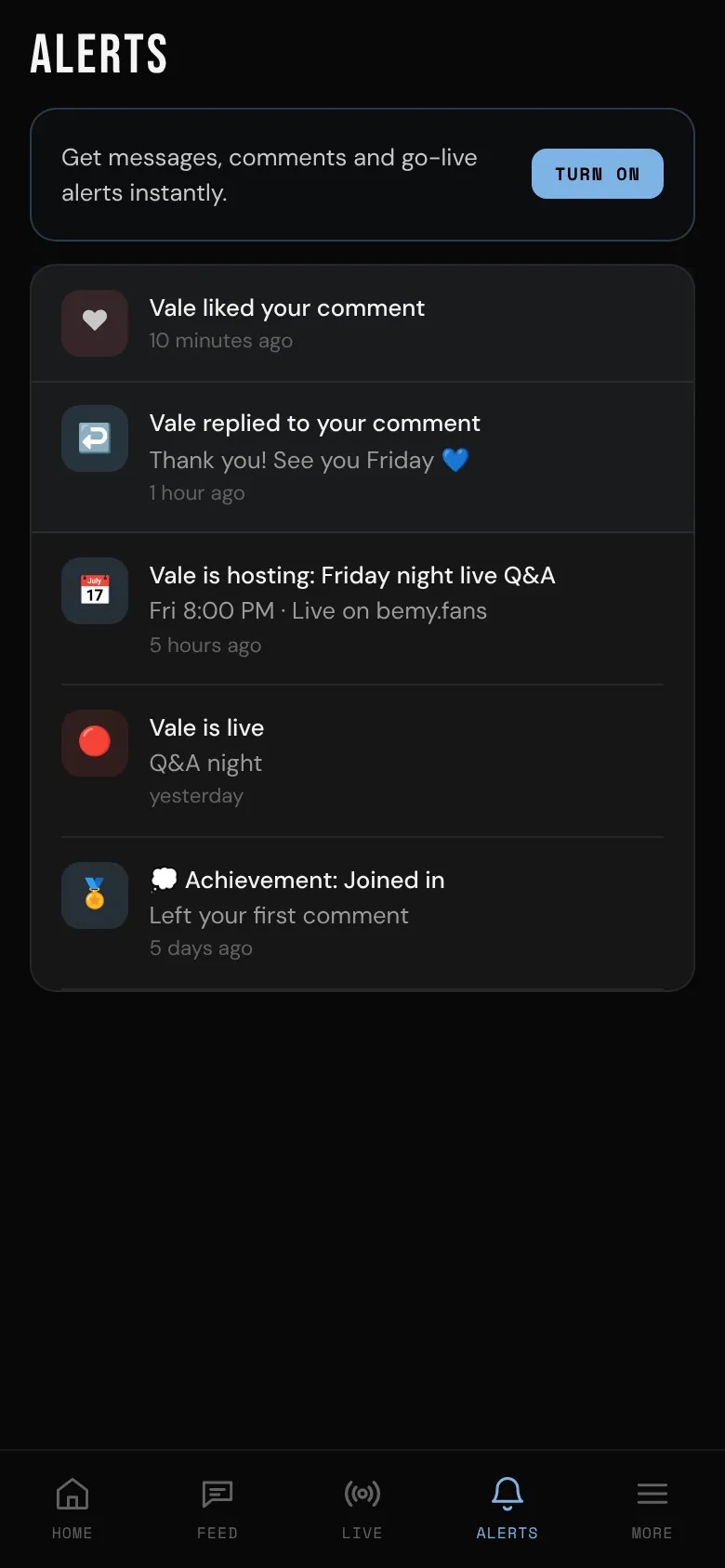
You'll also find a Turn on button in the setup guide, at the top of Alerts, and on the Turn on notifications? card the app shows you.
On iPhone and iPad, open bemy.fans from your Home Screen first, then turn notifications on from there.
Not getting notifications?
- "Notifications are blocked": notifications were declined for bemy.fans at some point. Allow them in your browser or phone settings, then switch them on in Settings again.
- "This browser doesn't support push notifications": on iPhone, add bemy.fans to your Home Screen first. Elsewhere, try another browser.
- Switching Push notifications off in Settings stops them on that device only.
- Without push, you still get alerts inside bemy.fans and by email. See Email preferences.
The Alerts page
Tap Alerts (the bell) to see your latest notifications. The number on the bell shows how many are new, and opening Alerts marks them all as read. Tap any alert to go straight to it.
Messages aren't listed in Alerts: they have their own count on the Messages icon.