Stream from OBS or a camera
You can send video into your live from streaming software on your computer (like OBS), a streaming app, or a camera that can stream on its own. bemy.fans gives you an address and a stream key for that one live, and the video appears in your live as your camera (with the Creator Studio on, as the OBS feed in your scenes).
Before you start
- You need to be live first, as the host. It doesn't work in video calls.
- Remote cameras aren't available on every live. If Cameras says Streaming from other apps isn't available for this live yet, use your device's camera or a spare phone instead. See Cameras.
- Keep bemy.fans open on your computer or phone for the whole live. Your live ends 3 minutes after the last of your own signed-in devices leaves, even if your software is still streaming.
Get your stream key
- Go live, then tap Cameras (it may already be open).
- Under Remote camera (OBS, RTMP, WHIP), tap one:
- RTMP address works with almost every streaming app and camera.
- WHIP (OBS 30+) is newer, has less delay, and is lighter for bemy.fans to handle. It needs OBS version 30 or later.
- Use the Copy buttons to copy each detail into your software. The key is hidden. Tap Show to see it.
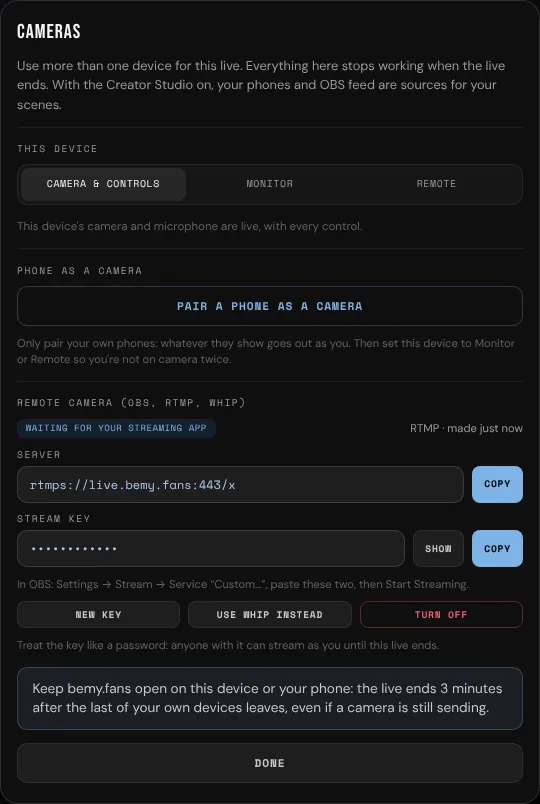
In OBS, with RTMP
- In OBS, open Settings, then Stream.
- Set Service to Custom….
- Paste the Server and the Stream key from Cameras.
- Click Start Streaming.
If your app can't use an address starting with rtmps://, Cameras also shows one starting with rtmp://. It works too, but it isn't encrypted.
In OBS, with WHIP
- In OBS, open Settings, then Stream.
- Set Service to WHIP.
- Paste the Server and the Bearer token from Cameras.
- Click Start Streaming.
Check it's working
Cameras shows the stream's status:
- Waiting for your streaming app: nothing is arriving yet. Start streaming in your software.
- Connecting…: it's arriving and about to go out.
- Receiving · on air: your video is live.
- Error: something went wrong, and a message explains what. Check the address and key, or tap New key and try again.
- Stopped: the stream has stopped.
- Not connected: the key isn't working any more. Tap New key to make another.
- Status unavailable: bemy.fans can't check right now. Look at your live to see if your video is on.
If you didn't turn on Use another camera, set this device to Monitor or Remote under This device, so you're not on camera twice.
Change or turn off your key
- New key makes a new key. The old one stops working straight away.
- Use WHIP instead or Use RTMP instead switches type, with a new key.
- Turn off stops the key working.
Each key only works for the live you made it in, and stops working when that live ends.