Cameras
Cameras lets you use more than one device in the same live. For example:
- a spare phone on a tripod as your camera, while your computer shows the chat,
- your computer as the camera, with your phone in your hand to read the chat,
- streaming software as your camera. See Stream from OBS or a camera.
Cameras is for the host of a live. It isn't part of video calls. (It used to be called Studio mode.)
Open Cameras
While you're live, tap Cameras in your controls. Anything you set up here works only for this live, and stops working when the live ends.
Choose what this device does
Under This device, choose:
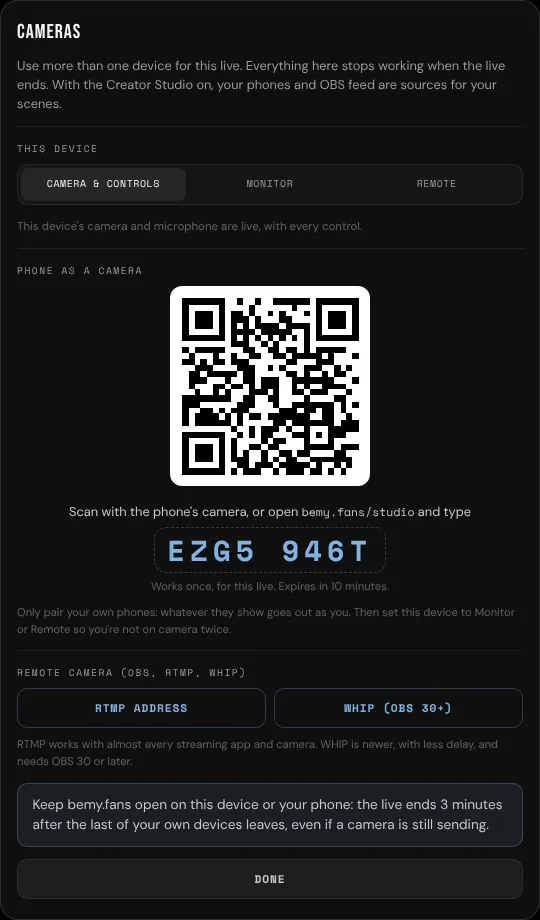
- Camera & controls: this device's camera and microphone are live, with every control. This is the normal setting.
- Monitor: this device sees and hears everyone, and sends nothing. Use headphones so your camera doesn't pick the sound up again. Your own camera stays silent here unless you tick Hear my own camera too.
- Remote: chat, viewers and controls. It sends nothing, and its sound is off so it doesn't echo. Tick Play sound on this device if you want to hear the live.
A small Monitor · not sending or Remote · not sending label stays on screen as a reminder. You can switch back to Camera & controls at any time.
Use your phone as a remote
- Go live on your computer as usual.
- On your phone, sign in to bemy.fans with the same account and open your live. Tap You at the top of the Feed, or open your live's link.
- Because your live is already open on your computer, your phone becomes a remote by itself, and tells you so.
From the remote you can read and send chat, open Viewers to invite people on camera, share your link, and End live. Your computer keeps sending your camera.
Use a spare phone as your camera
The spare phone doesn't need to be signed in to bemy.fans.
- On the device you're live on, tap Cameras, then Pair a phone as a camera. A QR code and an 8-character code appear.
- On the spare phone, scan the QR code with its camera app. Or open the address shown next to the code (it ends in
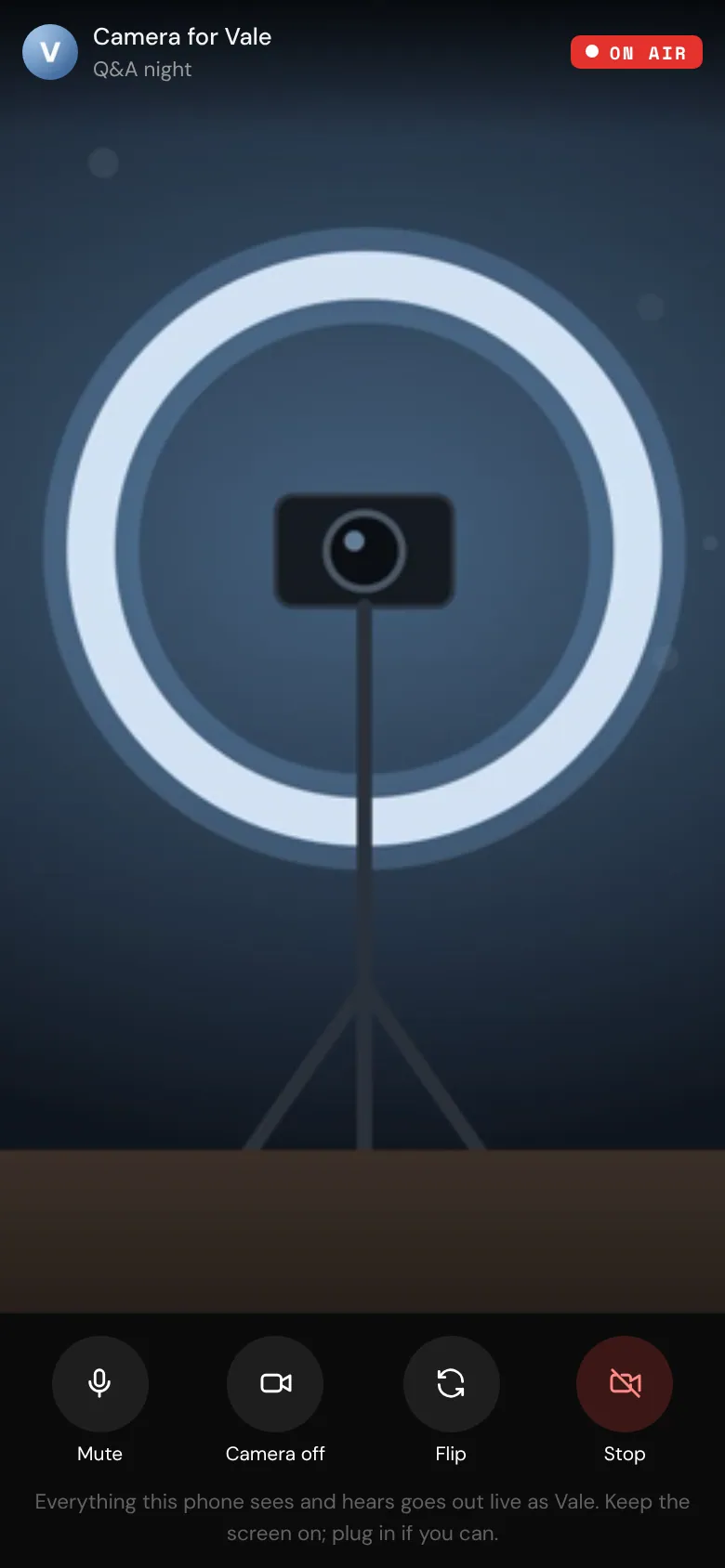
/studio), type the code, and tap Pair this phone. Pairing works the same whether you're live from a computer or a phone. - Let the phone use its camera and microphone. It starts with its back camera and shows ON AIR once it's sending.
- Back in Cameras, set your other device to Monitor or Remote, so you're not on camera twice.
Each code works once, only for this live, and expires after 10 minutes. You can pair up to 3 phones per live.
On the camera phone
The phone shows what its camera sees, with Camera for your name and your live's title at the top. Its buttons:
- Mute / Unmute and Camera off / Camera on,
- Flip to switch between its front and back cameras,
- Stop to pause sending, then Resume to start again.
Keep the phone's screen on, and plug it in if you can. When your live ends, it shows The live has ended and stops sending.
Control the phone from Cameras
Each paired phone is listed in Cameras, with Live on camera while it's sending. Tap Mute, Unmute or Flip to control it from your other device. The phone shows a short note, like "Muted by the host". Disconnect unpairs it straight away, and the phone shows This phone was disconnected. To use it again, make a new code.
Start a live with another camera
If you already know you'll use a spare phone or streaming software, turn on Use another camera on the Go live screen. This device won't send video, and Cameras opens as soon as you're live, with this device set to Monitor. See Go live.