Go live
Going live broadcasts your camera to your fans, with a chat beside the video. Viewers can ask to join you on camera.
Before you start
- Going live is for creators. Fans watch, chat and come on camera when a host invites them. If you have a fan account, switch to a creator account in Settings → Account type (it takes a second, and you can switch back any time). See Account settings.
- You need a verified ID to go live or to be on camera. It keeps bemy.fans adults-only. Watching and chatting don't need one. See Verify your ID. If the bemy.fans team has waived ID verification for your account, that counts too.
- You can host one live at a time, and a call you make counts as one.
- Everyone on camera must be 18 or older and agree to be there.
Start a live
- Tap Go live. It's on your Home, at the top of the Feed, at the top of the Live page, and under More on a phone.
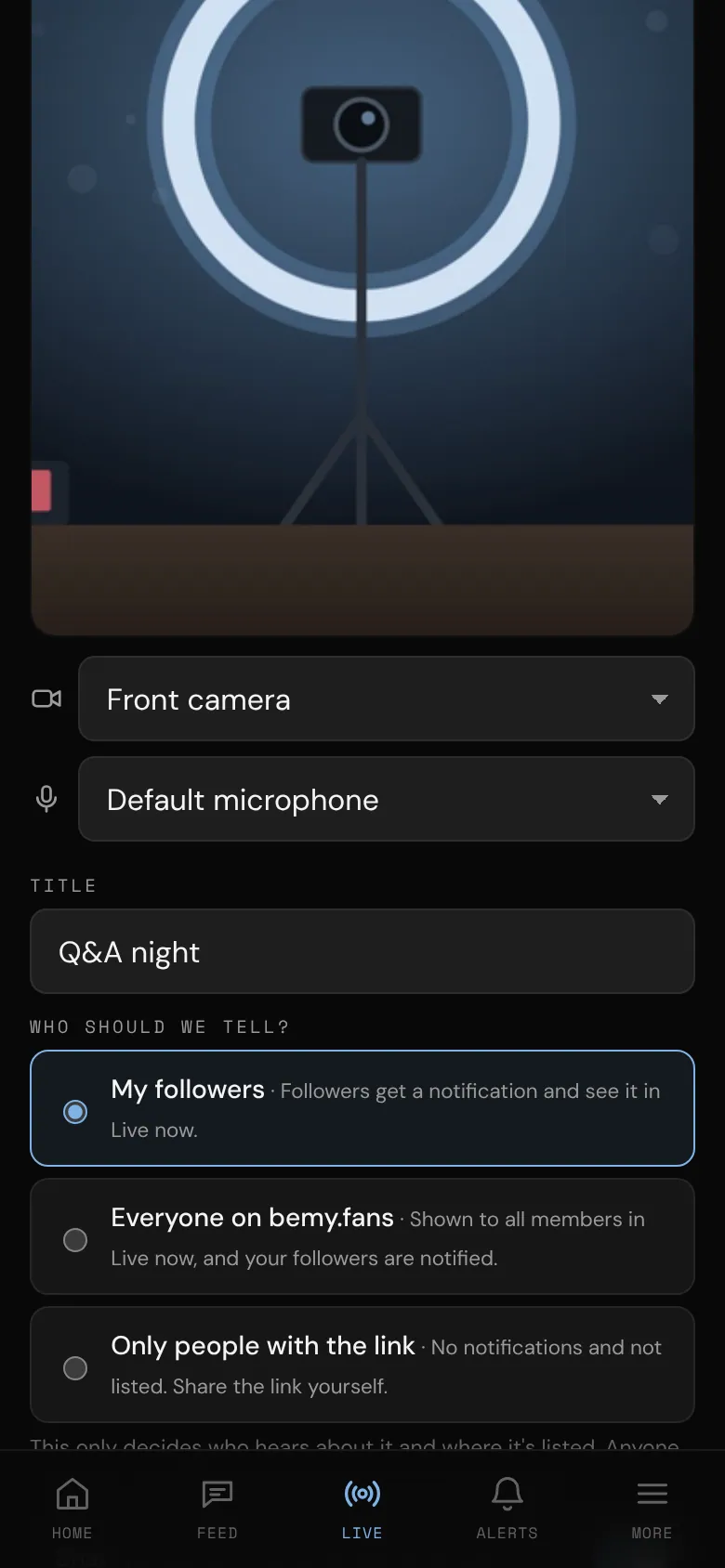
- Check your camera preview. If you have more than one camera or microphone, choose them in the lists under the preview, or tap the flip button on the preview to switch between your front and back cameras.
- Type a Title (up to 80 characters), like "Q&A night" or "Behind the scenes".
- Under Who should we tell?, choose one:
- My followers: your followers get a notification and see your live in Live now.
- Everyone on bemy.fans: every member sees it in Live now, and your followers get a notification.
- Only people with the link: no notifications, and it isn't listed anywhere. Share the link yourself.
- Leave Chat on, or turn it off. You can change it during the live too.
- Optional extras:
- 🌐 Public link lets people without an account watch and chat. See Public live links.
- Creator Studio goes live with your scenes: your logo, a lower third, chat on screen, guests side by side. See Creator Studio.
- Use another camera turns this device into a monitor while a spare phone or streaming software is your camera. See Cameras.
- Tap Go live.
If the preview says bemy.fans can't use your camera or microphone, allow access in your browser's site settings (close any other app using the camera), then tap Try again.
While you're live
The controls run down the side on a phone and sit under the video on a computer:
- Mute / Unmute and Camera off / Camera on.
- Record records your own camera and microphone while you're the only one on camera (with the Creator Studio on, what's on screen). See Record your live.
- Flip (phones) switches between front and back cameras. Settings (computers) lets you pick another camera or microphone.
- Be right back (computers; on a phone, tap ✕) turns your camera and microphone off and shows everyone a Be right back screen while you step away. See Be right back below.
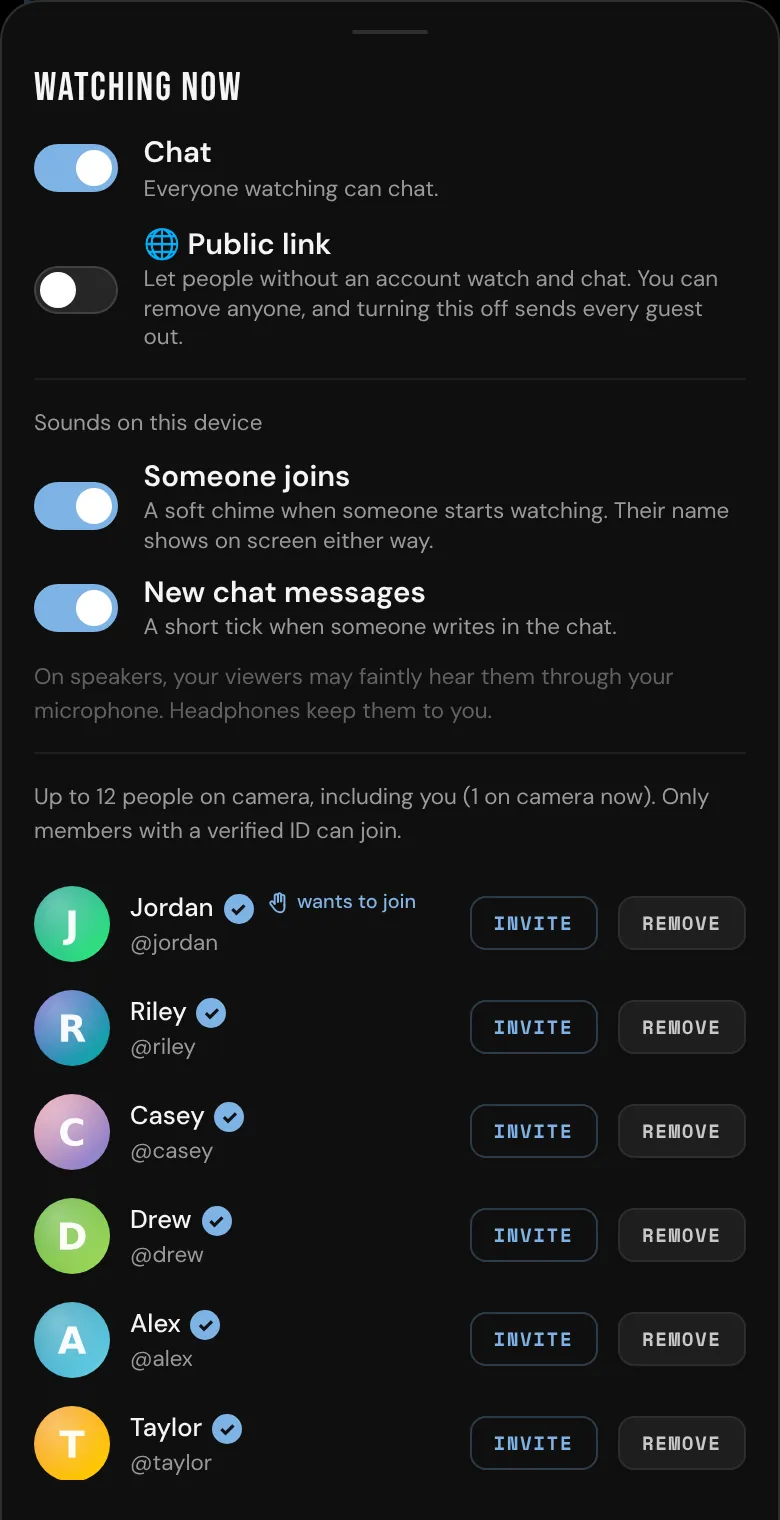
- Viewers shows who's watching and who wants to join you on camera. At the top are switches for Chat, 🌐 Public link and your sounds.
- Scenes switches between your scenes when you go live with the Creator Studio. See Creator Studio.
- Cameras lets you use more than one device, like a spare phone as your camera. See Cameras.
- Share opens your live's link, with Copy, Share… (your device's own share menu, where it has one) and the 🌐 Public link switch. See Public live links.
- Chat / Hide chat (phones) shows or hides the chat on your screen.
- End live ends it.
The number next to the eye icon is how many people are watching. Every viewer also sees a faint mark with their own username across the video, which discourages screen recording.
Know when someone joins or writes
When someone starts watching, you hear a soft chime and see their name at the top of the video for a few seconds ("Alex joined", or "Alex and 3 others joined" when several arrive together). When someone writes in the chat, you hear a short tick. Only you get these, never your viewers.
To change them, tap Viewers. Under Sounds on this device, switch Someone joins or New chat messages off or on. Turning one on plays it once so you know what to listen for.
- Your choice is kept on this device, so you can have sounds on your computer and off on your phone. If you use Cameras with two devices next to each other, turn sounds off on one of them.
- They start on, except in Discreet mode (Settings → This device → Hide explicit branding), where they're off until you turn them on.
- Someone whose connection drops and comes back within 2 minutes isn't announced again.
- Busy live? The sounds never play more than once every couple of seconds.
Turn the chat off or on
Tap Viewers, then switch Chat off. Everyone sees Chat is off in the chat box, and only you can post. Switch it back on the same way. On a computer, you can also tap Turn chat off / Turn chat on at the top of the chat.
Bring people on camera
Up to 12 people can be on camera, including you, so you can bring on up to 11 others: a collab partner, a guest, a fan who asked. Only members with a verified ID can join you, and everyone on camera must agree to be there.
- A viewer who'd like to join taps Join on camera. A number appears on your Viewers button.
- Tap Viewers. People who asked show wants to join.
- Tap Invite next to someone. You can invite anyone watching who has a verified ID, even if they didn't ask.
- They see that you invited them and choose Join on camera or Not now. An invitation expires after 2 minutes.
With the Creator Studio on, the people you bring on camera wait backstage, unseen and unheard by your viewers, until you put them in a scene. See Creator Studio.
To take someone off camera, open Viewers and tap Off camera. They go back to watching. Remove takes someone out of your live for the rest of it. See Live safety.
What your fans see
- Unless you chose Only people with the link, a post in the feed says you're live, with a Watch button. It goes to your followers, or to all members if you chose Everyone on bemy.fans. When you finish, it changes to "was live" with how many minutes it ran.
- Your followers get a notification that you're live, with your title. If you go live again within 30 minutes (after a dropped connection, say), they aren't notified a second time.
- People who can see your live listed also see a LIVE badge on your profile picture, and your live at the top of the Feed and on the Live page.
See Followers for who follows you.
End your live
- Tap End live.
- Tap End live again to confirm.
Everyone watching sees that your live has ended. You see how long it ran and your peak number of viewers, with a Go live again button.
If you're recording your live, ending it stops the recording and saves it to My videos (see Record your live).
Be right back
Need a drink of water or a quick break? Don't leave everyone looking at an empty room:
- On a computer, tap Be right back under the video. On a phone, tap ✕ at the top, then Be right back.
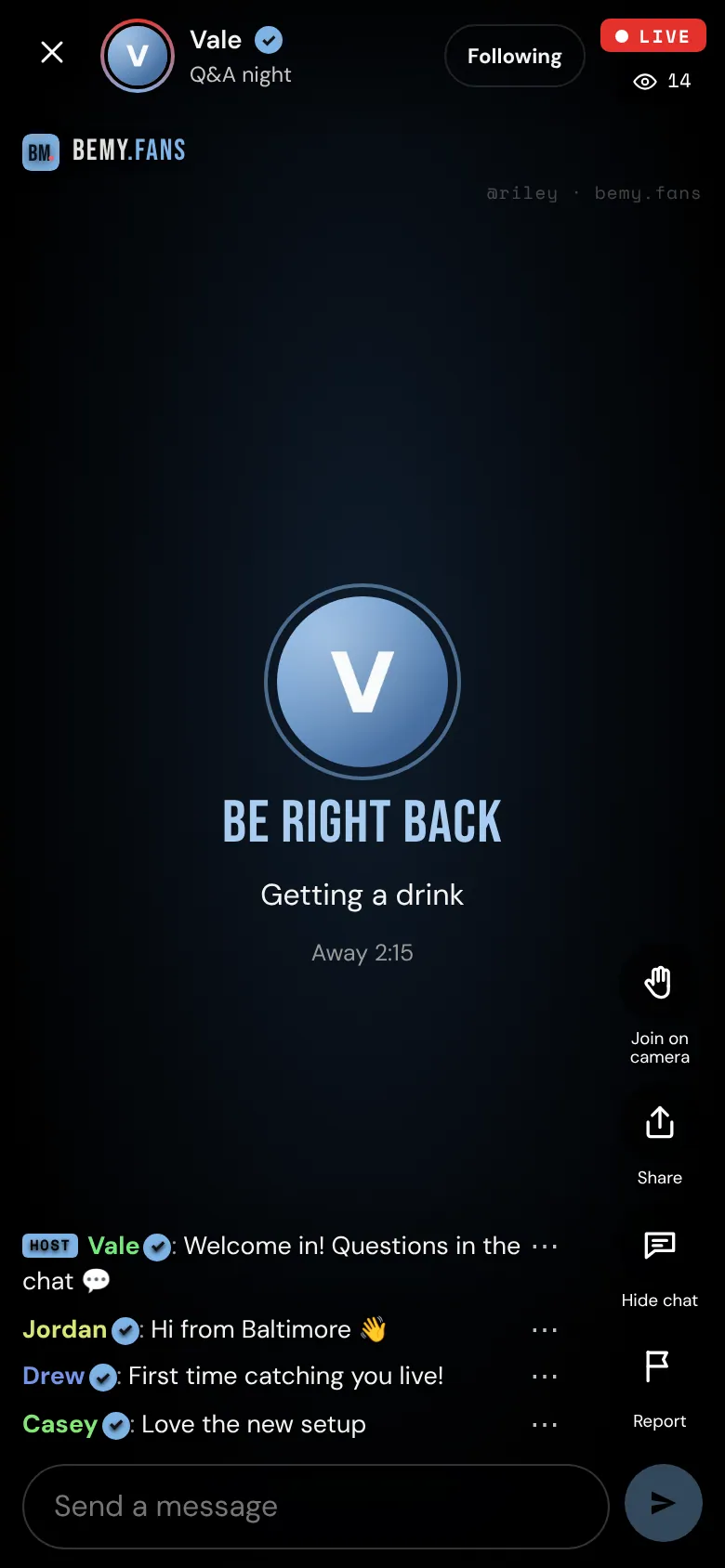
- Add a note for your viewers if you like ("Getting a drink", "Back in 5 minutes"), or pick one of the suggestions.
- Tap Be right back.
Your camera and microphone turn off, and everyone watching sees Be right back with your picture, your note and how long you've been away. Your live, the chat and your viewer count carry on; a break never ends your live.
When you're back, tap I'm back (on the Be right back screen, or in your controls). Your camera and microphone come back on as they were: if your microphone was muted before the break, it stays muted.
- If you're recording your live, a break stops the recording. What was recorded so far is saved to My videos.
- Using Cameras? Start or end a break from any of your devices. A phone camera or streaming app you've added keeps running, but nobody sees or hears it until you're back.
Step away without ending
If you tap the ✕ (phones) or Leave (computers), bemy.fans asks what you'd like to do:
- Be right back keeps you in your live and shows everyone a Be right back screen (see above).
- End live ends it for everyone.
- Leave for now takes you to the Feed and keeps your live going while you're away. To go back, tap You at the top of the Feed. If you're not back within 3 minutes, it ends by itself (unless it's open on another of your devices).
- Stay keeps you in your live.
A live also ends by itself:
- 3 minutes after you leave without ending it, or lose your connection, unless it's still open on another of your devices,
- after 8 hours,
- or if a moderator ends it. You get a notification saying why.