Creator Studio
The Creator Studio puts your live together like a TV studio. You set up scenes ahead of time: what's on screen, where, and what goes on top, like your logo, your name or the chat. Then you switch between them while you're live. Your viewers see one finished picture with everything in it.
The picture is put together on bemy.fans's live servers, not on your device, so switching scenes doesn't slow your phone or computer down. Every creator has the Creator Studio.
Set up your scenes
Open Creator Studio from your Home, or from More (on a computer, More is in the menu on the left). Set up scenes on the Go live screen takes you there too.
You start with five scenes, ready to use or change:
- Camera: you, filling the picture.
- With a guest: you and a guest side by side.
- Camera + screen: a screen you share, with you in the corner.
- Just chatting: you, with the chat on screen.
- Starting soon: a title and a countdown to your next event, for before you start.
Tap a scene to change it. The preview at the top shows what your viewers will see. Tap Show my camera to see yourself in it: nothing is sent anywhere until you go live.
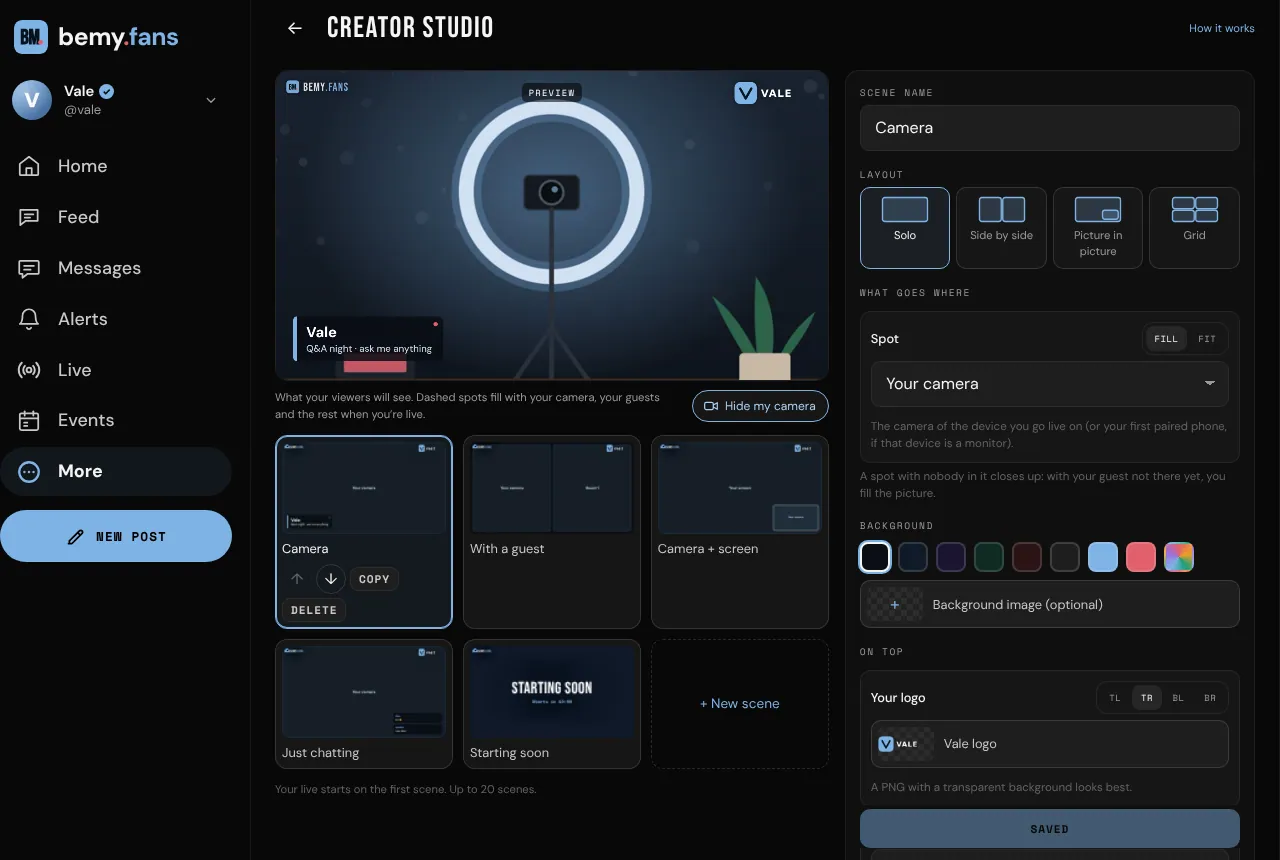
In each scene you can change:
- Scene name.
- Layout: Solo, Side by side, Picture in picture or Grid (four spots).
- What goes where: for each spot, choose Your camera, Your screen, Guest 1, Guest 2 or Guest 3, Phone 1 to Phone 3, the OBS feed, An image or Nothing. Fill crops the picture to fill its spot; Fit shows all of it. A spot with nobody in it closes up, so with your guest not there yet, you fill the picture.
- Background: a color, or one of your images.
- On top:
- Your logo, in the corner you choose. A PNG with a transparent background looks best.
- Lower third: your name, or what this is, with a second line if you like.
- Big title, like "Starting soon" or "Back in 5", with a line under it.
- Chat on screen: the newest messages, bottom right.
- Countdown to your next event: shows when you have an event coming up in the next day. See Host an event.
Tap Save scene when you're done, or Undo changes. Use the arrows to put your scenes in order (your live starts on the first one), Copy to start a new scene from this one, and Delete to remove it. You can have up to 20 scenes.
Your images
Under Your images, tap Upload to add logos, backgrounds and cards for your scenes: PNG, JPG or WebP, up to 12 MB each, and up to 60 images. They're only shown in your lives. Deleting an image takes it out of any scene that uses it.
Go live with your scenes
- Tap Go live.
- Leave Creator Studio on. It starts on once you have scenes (opening the Creator Studio gives you the five above), and the Go live screen remembers what you chose on each device.
- Tap Go live.
The Creator Studio takes a few seconds to start. Until it's on air, your viewers see your camera directly.
To switch scenes:
- On a computer, tap a scene in the row under the picture. More… opens everything else.
- On a phone, tap Scenes, then a scene.
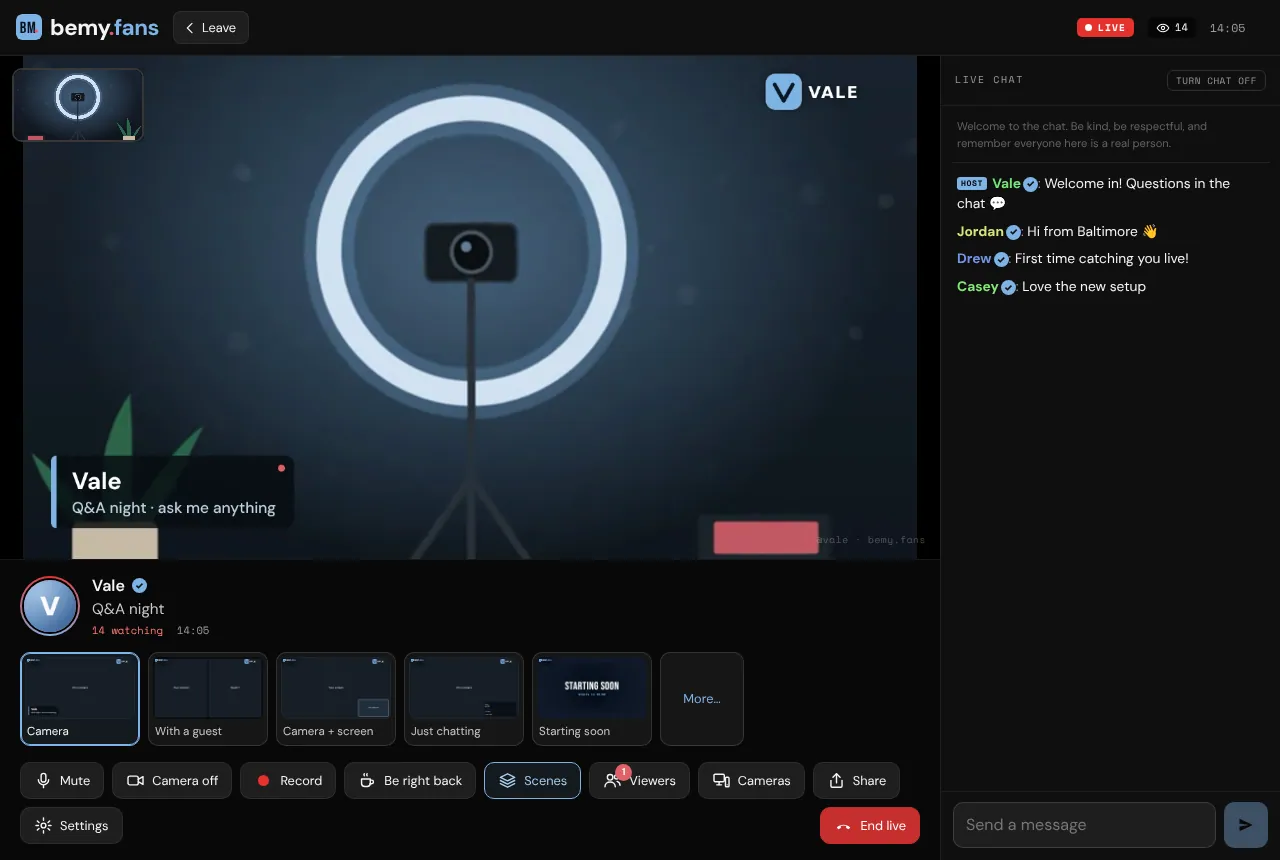
You can also turn the Creator Studio on or off during your live: tap Scenes, then Turn on or Turn off. When it's off, your viewers see your cameras directly, as in a live without it.
During your live
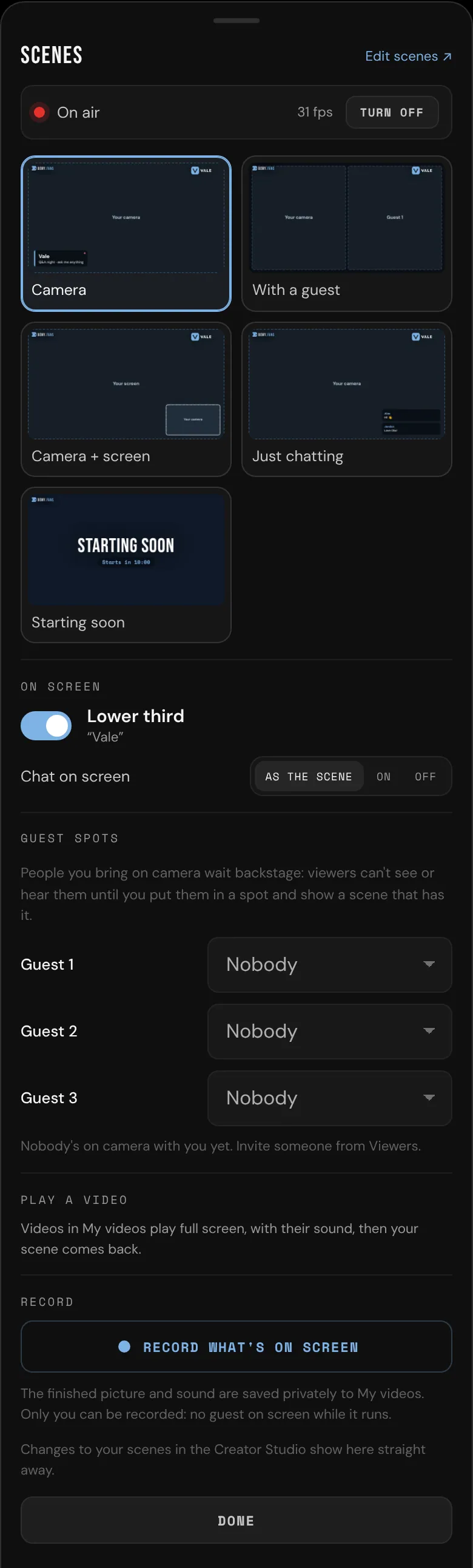
Tap Scenes for everything else. At the top you see whether you're On air, with your scenes under it. Then:
- On screen: hide or show the Lower third without changing the scene, and set Chat on screen to As the scene, On or Off.
- Guest spots: who's in Guest 1, Guest 2 and Guest 3. See Guests below.
- Your screen (computers): Share your screen to show a window, a tab or your whole screen in scenes that have Your screen in a spot. If the scene that's on doesn't have it, bemy.fans switches to the first one that does, like Camera + screen.
- Play a video: play one of your videos from My videos full screen, with its sound. Your scene comes back when it ends, or when you tap Stop.
- Record: see Record what's on screen below.
- Edit scenes ↗ opens the Creator Studio in a new tab. Scenes you save there show in your live straight away.
Be right back works the same as always: everyone sees the Be right back screen, and nobody is heard until you're back. See Go live.
Guests: backstage and on screen
With the Creator Studio on, people you bring on camera wait backstage first. You can see and hear them, and so can anyone else on camera, but viewers can't. That gives you a moment to say hello before they're on screen.
To put a guest on screen:
- Invite them on camera from Viewers, as usual. See Go live.
- Tap Scenes. Under Guest spots, choose them for Guest 1.
- Switch to a scene with Guest 1 in it, like With a guest.
Your guest sees Backstage · viewers can't see or hear you or On screen · everyone sees and hears you, so they always know. Under Guest spots you see where everyone is too: on screen, backstage, or in a spot that isn't in the scene that's on.
To take a guest off screen, switch to a scene without their spot, or set their spot to Nobody. Off camera in Viewers sends them back to the audience. If the Creator Studio stops, people waiting backstage go back to the audience too, so nobody is shown without knowing.
Phones and OBS in your scenes
A phone you pair in Cameras is Phone 1, Phone 2 or Phone 3 in your scenes, and streaming software is the OBS feed. See Cameras and Stream from OBS or a camera.
Your camera is the camera of the device you're live on. If that device is a monitor or a remote, your first paired phone is your camera (or the OBS feed, if you haven't paired one).
What your viewers see and hear
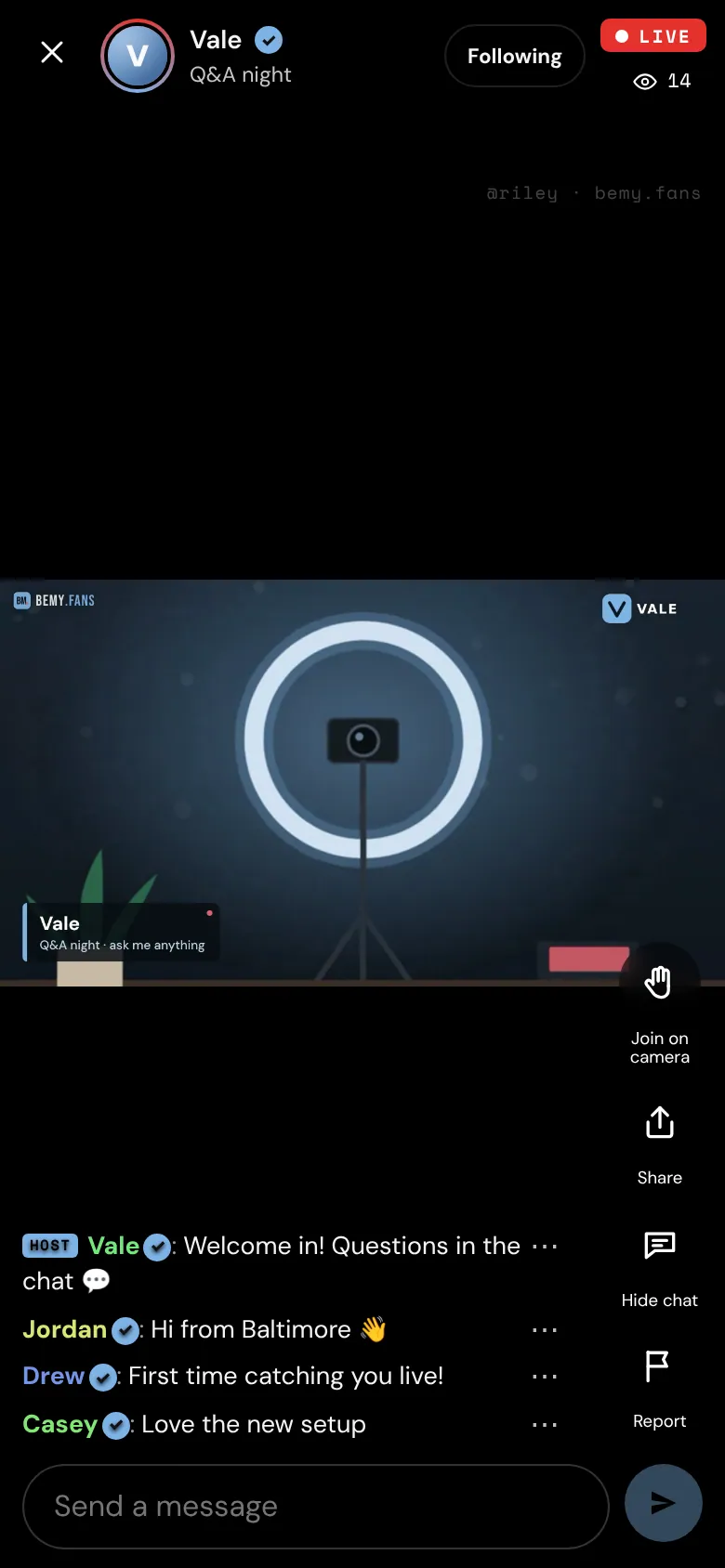
- One picture, with your scene, your overlays and the chat if it's on screen, and the bemy.fans mark in a corner. When more than one person is on screen, everyone's name shows on their picture.
- Your microphone is always heard (except during Be right back). Guests, phones and the OBS feed are heard while they're on screen, and a video you play is heard while it plays.
- Every viewer still sees a faint mark with their own username across the video.
Record what's on screen
With the Creator Studio on, Record records the finished picture and sound, as your viewers see them: your scenes, overlays and chat on screen. It's saved privately to My videos, like any recording. See Record your live.
- Tap Record, then ⏺ Start recording. You can also start and stop it in Scenes.
- Tap Stop recording when you're done.
Only you can be recorded, so no guest can be on screen while it runs: take your guests off screen first. Everyone watching sees REC.
If it doesn't start
If something stops the Creator Studio, a banner tells you, your viewers see your cameras directly, and nothing else changes: your live, the chat and your viewers carry on. Tap Restart in the banner (or Scenes → Restart) to try again.
- This live's server doesn't have the Creator Studio yet: your cameras show directly in this live. Your next live may land on a server that has it.
- The Creator Studio is busy on this server right now: try again in a few minutes.
- You're recording your camera: stop recording, then turn on the Creator Studio.