Host an event
Events help your fans plan ahead: an ask-me-anything live on Friday night, or a meet and greet in your city.
Creators host events, live or in person, and you need a verified ID to host one (see Verify your ID). You can have up to 5 upcoming events at a time, up to 180 days ahead.
Fans don't host events: they find events from the creators they follow and say they're going (see Events). If you have a fan account, Host an event says "Hosting events is for creators. Fans find events from the creators they follow and say they're going.", with See events and Switch to a creator account.
Create an event
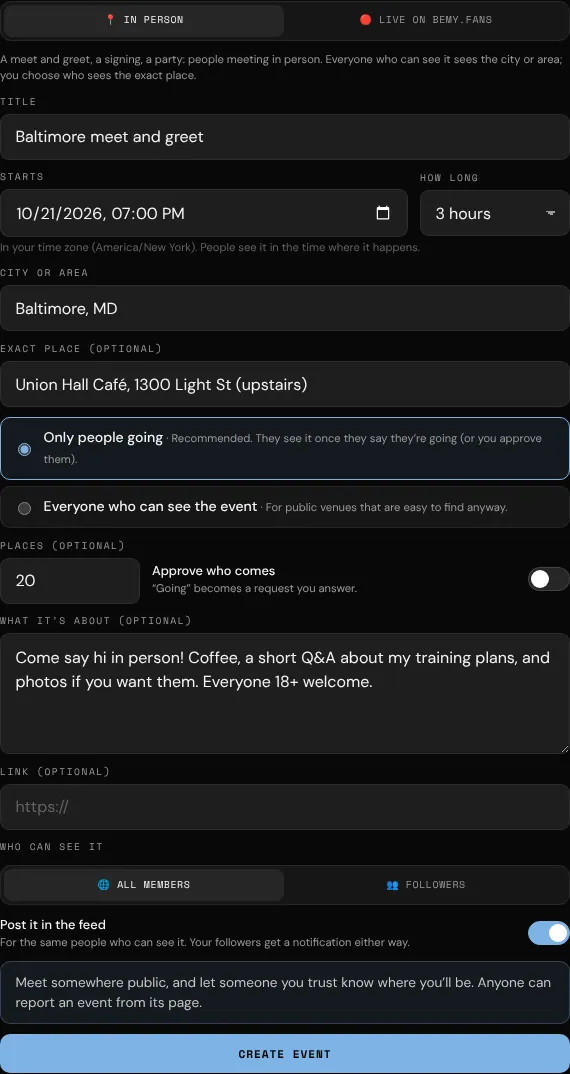
- Open Events (it's on Home) and tap + Host an event.
- Choose 📍 In person or 🔴 Live on bemy.fans.
- Give it a Title, and choose when it Starts (in your own time) and How long it runs (30 minutes to 3 days).
- In person:
- City or area is needed. Everyone who can see the event sees it.
- Exact place (optional): the venue and address.
- Choose who sees the exact place: Only people going (recommended) or Everyone who can see the event.
- Places (optional): leave it empty for no limit.
- Approve who comes: "Going" becomes a request you answer.
- Add What it's about and a Link if you like.
- Under Who can see it, choose 🌐 All members or 👥 Followers.
- For a live for All members, you can switch on Share it publicly to get a page anyone can open. See Share it anywhere.
- Leave Post it in the feed on to post it for the same people who can see it. Your followers get a notification either way.
- Tap Create event.
Share it anywhere
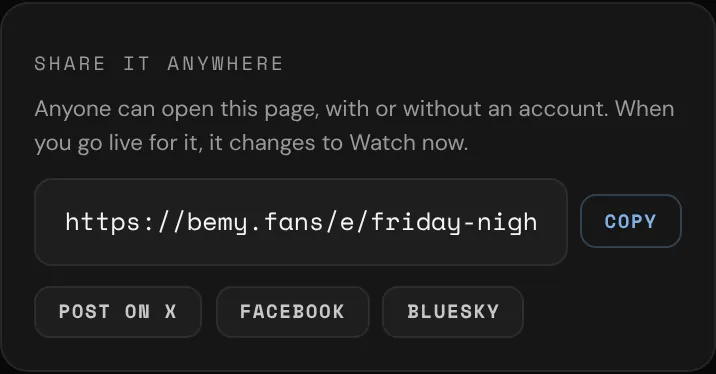
A live event for All members can have its own public page, so you can post it on X, Facebook, Bluesky or anywhere else, and people without an account can see when it is.
- When you create or change the event, switch on Share it publicly.
- Save it. The event page now has Share it anywhere, with the event's link (bemy.fans/e/…).
- Tap Copy, or Post on X, Facebook or Bluesky. On a phone, More… opens your phone's own share menu.
Anyone can open the page, with or without an account. It shows the title, that you're hosting, the time in their own time zone, a countdown, and 📅 Add to calendar. People without an account can Join free to get a reminder, and members get Open in bemy.fans to say they're coming. Wherever the link is posted, its preview shows a card with the title, the time and your name.
When you go live for it, the page changes to ▶ Watch now, and your live has its public link on from the start, so people without an account can watch too. After it ends, the page says This live is over. If you cancel, it says the event was cancelled, with your reason.
Good to know
- Only live events for All members can be shared. While Share it publicly is on, you can't choose 👥 Followers.
- Turn off Share it publicly and the page stops at once: the link says This event isn’t shared. Turn it back on and the same link works again.
- The link stays the same when you change the title or the time.
- If you don't see Share it publicly, public links are turned off on bemy.fans right now.
Requests
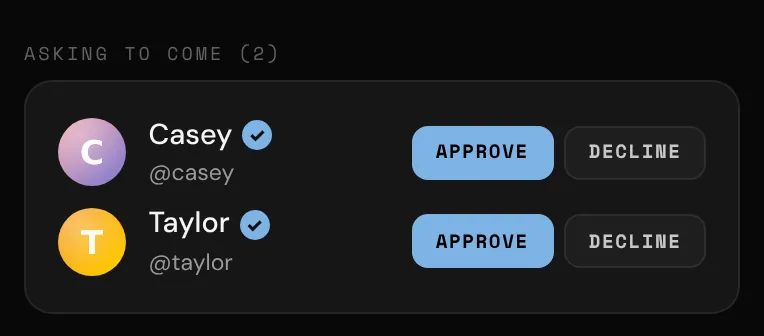
With Approve who comes, people asking to come show under Asking to come on the event page, and you get an alert for each.
- Tap Approve and they're going. They're told, and they can see the exact place.
- Tap Decline and they're told, kindly, that you can't fit them in this time.
You also get an alert when someone says they're going.
Change or cancel
On the event page:
- Change: edit anything except the kind of event. If you change the time or the place, everyone going, interested or asking is told. Turning off Approve who comes lets everyone waiting in, as far as the places go.
- Cancel event: give a reason if you like, then tap Cancel event. Everyone who answered is told, with your reason. This can't be undone.
If you're a fan with an event you hosted before, you can still cancel it, but you can't change it. It's on your Hosting tab.
Going live
For a live event, 🔴 Go live now appears on the event page from 30 minutes before it starts until it ends. The live takes the event's title and audience. Your followers and everyone going or interested are told, and the event page links to the live. See Go live.
You get a reminder an hour before.
Good to know
- You're the host, so you don't answer your own event. It shows Hosting for you.
- Your events are on the Hosting tab.
- People report events that break the rules, and moderators can take them down. If that happens, you're told why, and everyone coming is told it's cancelled.