The setup guide
Right after you sign up, bemy.fans walks you through a few quick steps. Every step can be skipped, and your progress is saved: if you leave halfway, you pick up where you left off next time.
The top of the page shows where you are, for example Step 1 of 5. Tap Skip setup at any time to go straight into the app, and Back to return to an earlier step.
The steps
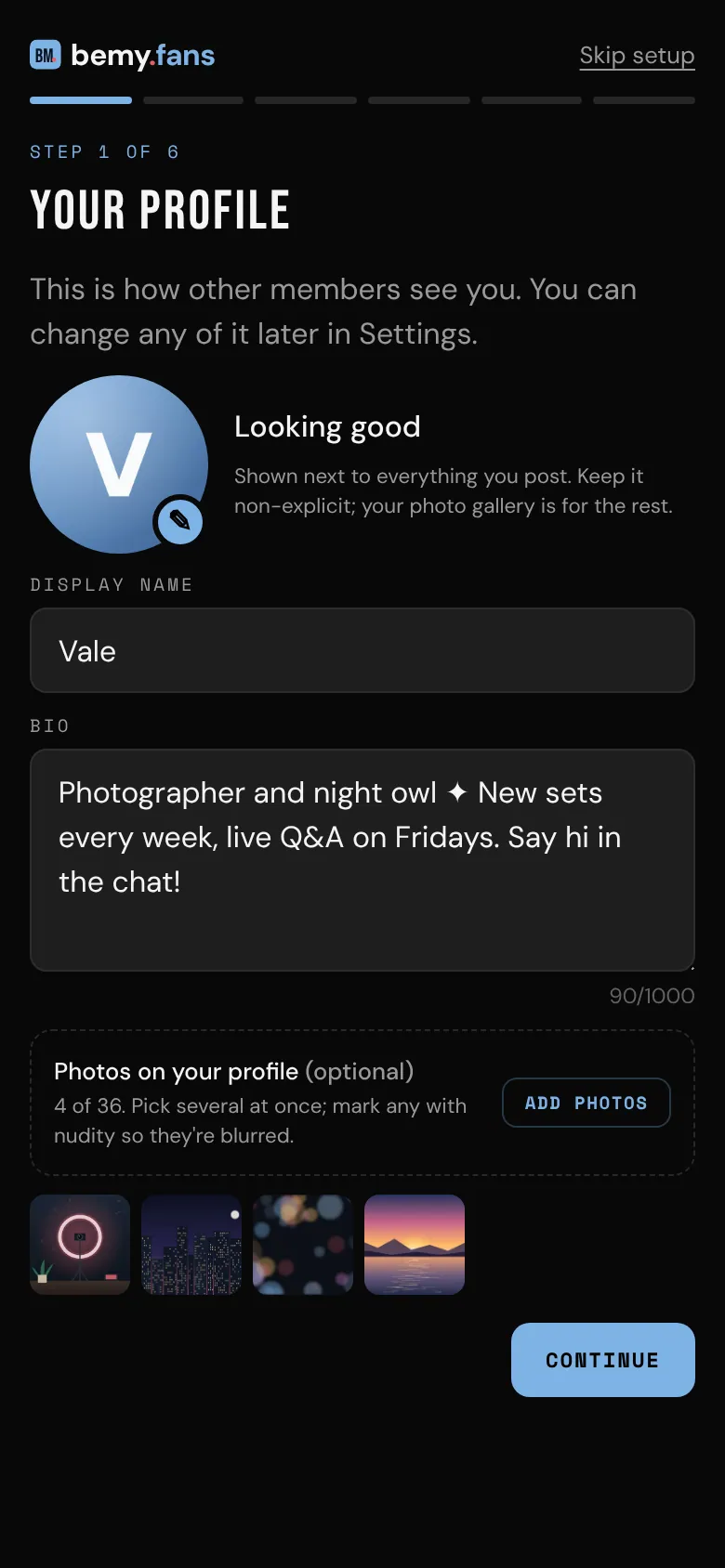
- Your profile: add a profile photo, a Display name and a Bio. Keep your profile photo non-explicit, because it's shown next to your posts, comments and messages. Creators can also add Photos on your profile (optional): pick several at once, and mark any with nudity so they're blurred for other members. Fans don't have this part, because photos on a profile are for creators. Tap Continue.
- Links & socials: your website, other links, and where else people can find you. All optional: tap Skip or Continue.
- Notifications: tap Turn on for push notifications on this device, and choose which emails you'd like. See Install the app and turn on notifications and Email preferences.
- Get the app (phones only): put bemy.fans on your home screen. On iPhone and iPad this step comes before Notifications, because iPhone only allows notifications for apps on the Home Screen. You won't see it if bemy.fans is already installed.
- Invite your friends: share your invite link or send up to 5 email invitations. Creators can bring their fans with them. See Invite friends.
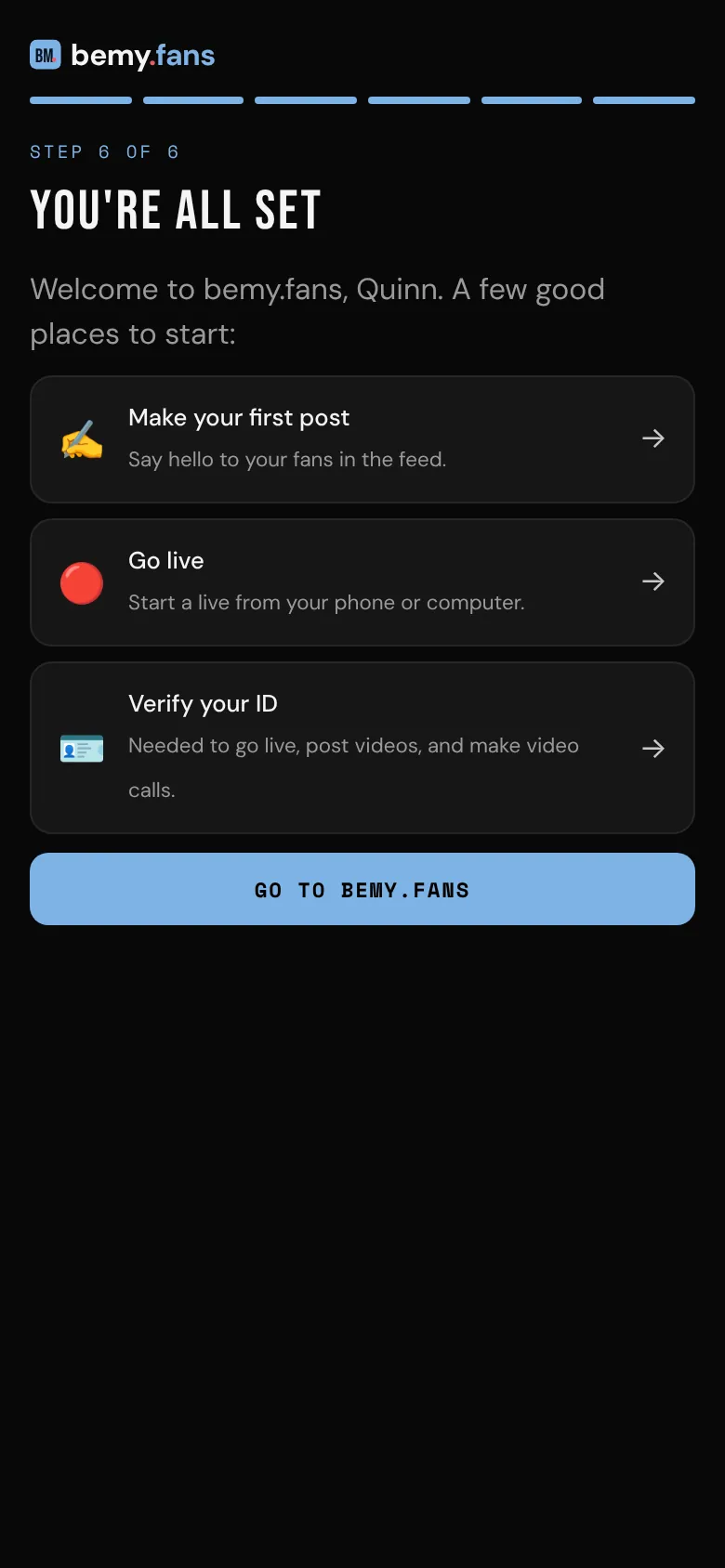
- You're all set: a few good places to start, and Go to bemy.fans.
On a computer there's no Get the app step, so the guide has 5 steps instead of 6.
Where to start
The last step suggests what to do first:
- Creators: Make your first post and Go live.
- Fans: Find creators and Watch a live.
- If your ID isn't verified yet: Verify your ID. Creators need it to go live, post videos and make video calls. Fans need it to join a live on camera and make video calls. See Verify your ID.
Run it again
You can go through the guide again whenever you like:
- Go to Settings.
- Tap Run the setup guide again → near the top.
Everything you change in the guide can also be changed later in Settings.