Watch a live
Anyone signed in to bemy.fans can watch lives and chat. You don't need a verified ID to watch.
Find a live
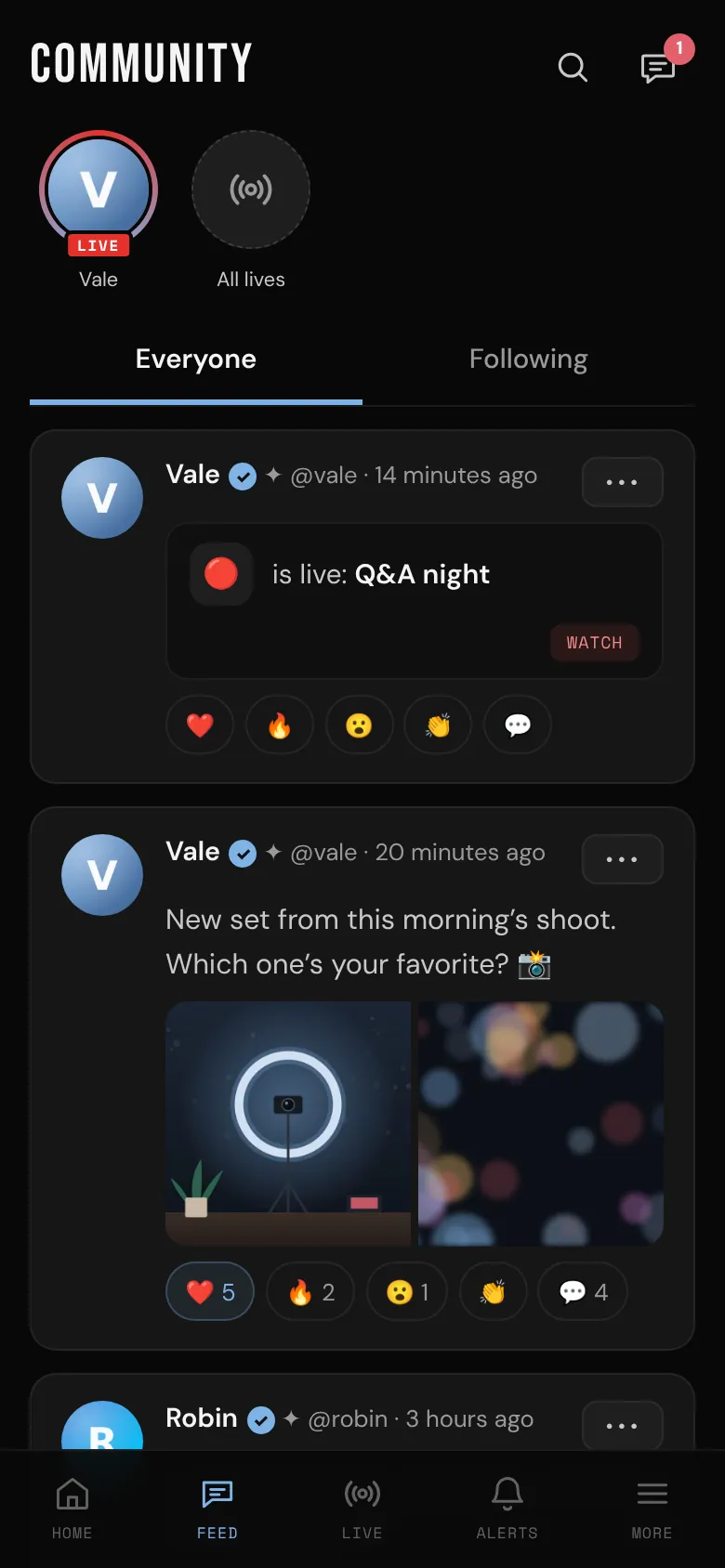
- Feed: when a creator you can see is live, round pictures with a red ring and a LIVE tag appear at the top of the Feed. Tap one to watch, or tap All lives to see every live.
- Live page: tap Live (a tab at the bottom on a phone, in the menu on a computer or tablet). Live now lists lives from creators you follow and lives open to everyone. Tap Refresh to check again. On a wide screen, the Live now box on the right shows them too.
- Notifications: when a creator you follow goes live, you get a notification.
- Posts and profiles: a live shows in the feed as a post with a Watch button, and the host's profile picture has a LIVE badge.
- A link: a creator can share their live's link with you. Anyone signed in can watch with it.
Nothing on? Follow a few creators so their lives show up here. See Find creators to follow.
Watching
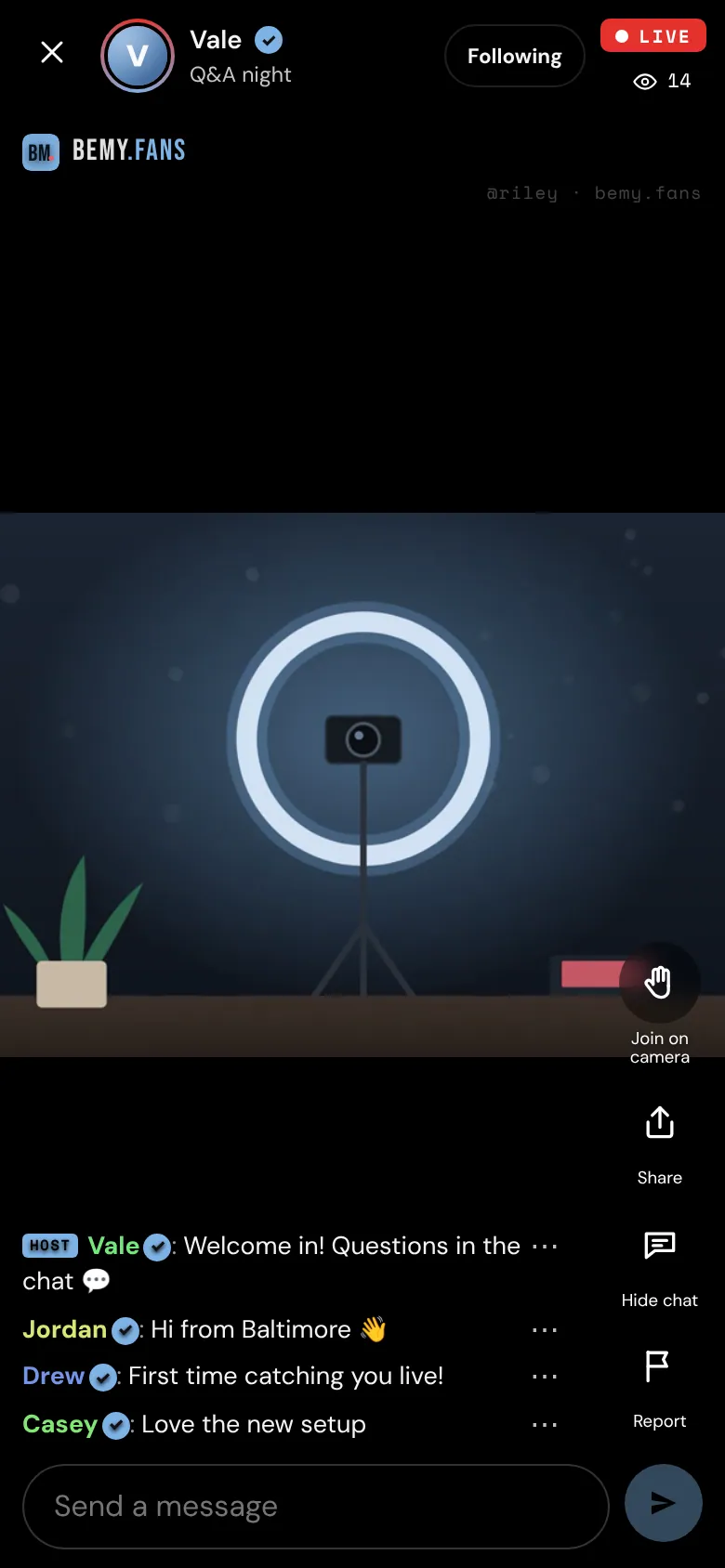
On a phone, the video fills the screen and the chat floats over it. On a computer, the chat sits on the right.
- Tap Follow next to the host's name to follow them.
- If you can't hear anything, tap Tap for sound. Some browsers start videos muted.
- The eye icon shows how many people are watching.
- If the video drops, tap Reconnect.
- If you open the same live in another tab or on another device, the first one stops. Tap Watch here to switch back.
- Some creators go live with the Creator Studio: you see one picture with their scenes, like their logo, their name, a guest side by side or the chat on screen. Everything else works the same.
Chat
Type in Send a message and tap send. Messages can be up to 300 characters. The host's messages have a HOST tag, and people watching from a public link have a 🌐 Public tag.
On a phone, tap Hide chat to see the whole video and Chat to bring the chat back. If you've scrolled up, tap the "new messages" button to jump to the latest.
To delete one of your own messages, tap ⋯ next to it, then Delete. It disappears for everyone.
If the box says Chat is off, the host has turned the chat off for now.
Join on camera
If you have a verified ID, you can ask to join the host on camera:
- Tap Join on camera. The host sees that you want to join. Tap Lower hand if you change your mind.
- If the host invites you, you'll see their invitation. Tap Join on camera to go on, or Not now.
- Everyone watching can now see and hear you. Use Mute and Camera off whenever you like. In a live with the Creator Studio, you wait backstage first: the host can see and hear you, but viewers can't until the host puts you on screen. The label on your screen always says which.
- Tap Leave stage to go back to watching at any time.
The host can also invite you without you asking, and can take you off camera. An invitation expires after 2 minutes; if you miss it, ask again. Don't have a verified ID yet? See Verify your ID.
Leave
Tap the ✕ at the top (phones) or Back (computers). The live carries on without you.
When a live ends, you see how long it ran and how many people watched at most, with Back to the feed and a button to view the host's profile.
If something's wrong
- To report the host, tap Report.
- To report someone in the chat, tap ⋯ next to their message, then Report.
A moderator looks at every report. See Live safety for more.