The feed and your posts
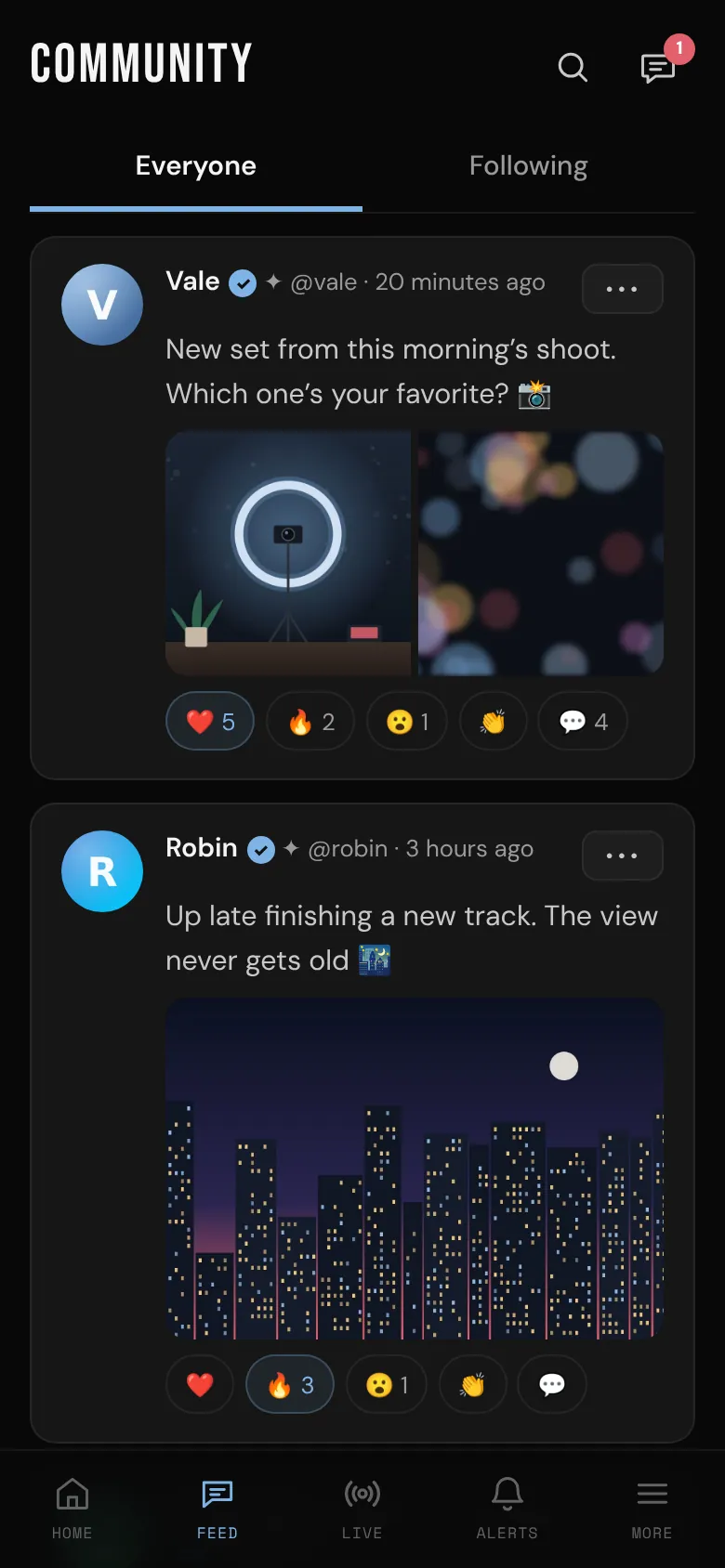
The feed is where creators share what they're up to and fans join in. Open it with Feed in the tab bar on your phone, or Feed in the side menu on a computer or tablet. The page itself is called Community.
Posts come from creators. Fans read them, react, comment and vote in polls, but don't post. See Creator or fan?.
Only signed-in members can see the feed. Nothing in it is public.
Everyone and Following
At the top of the feed there are two tabs:
- Everyone shows every post you're allowed to see, newest first.
- Following shows only posts from creators you follow. Creators see their own posts there too.
Scroll to the bottom and tap Load older posts to see more. Tap the time on a post to open it on its own page.
Creators who are live right now appear as round bubbles above the tabs. Tap one to watch, or tap All lives. Creators can start their own with Go live at the top of the page (see Go live).
You never see posts from members you've blocked, or who have blocked you.
Write a post
Posting is for creators. If you have a fan account, you don't see the box to write a post or the New post button, but you can react, comment and vote on creators' posts. To post, switch to a creator account in Settings.
- Tap the box that says What's new? (@ to mention someone) at the top of the feed. You can also tap New post on your Home, or in the side menu on a computer or tablet.
- Write your post. It can be up to 2,000 characters.
- Choose who can see it in the menu next to the buttons: All members or Followers only.
- Tap Post.
Posting on different days, and week after week, earns achievements like Regular and Week after week. See Achievements.
Add photos
- Tap 📷 Photos and pick one or more photos.
- If you picked one, the editor opens: choose Original, Square or Portrait, zoom or rotate. If you picked several, you see them in a list, and you can tap ✂ Crop on any of them.
- Answer Does this show nudity or sexual content? with Yes or No for every photo. Nothing is picked to start with, so you choose each time. With several photos, Same answer for all answers them all at once, and you can still change any one of them.
- Tap Add to post (or Add 3 photos, or however many you picked). It turns on once every photo has an answer.
A post can have up to 5 photos on Free and 12 on Plus and Pro. Tap ✕ on a thumbnail to take a photo out before you post.
In the feed, a post shows up to four photos, with "+2" (and so on) on the last one when there are more. Tap a photo to see it full size, then swipe or use the arrows to move between them.
Photos you answered Yes for stay blurred for other members until they tap them, unless they've chosen to see sensitive content. You can change how blurring works for you: see Privacy and safety.
Add a video
Tap 🎥 Video to record a video in the app or choose one from your phone or computer. Videos go out whole: up to 6 hours and 20 GB. You can trim one before you post it, or keep all of it. Posting a video needs a verified ID. A post with a video can't also have photos or a poll. See Post a video.
Ask a question with a poll
Polls are a quick way to let your fans choose: what to post next, when to go live, which outfit wins.
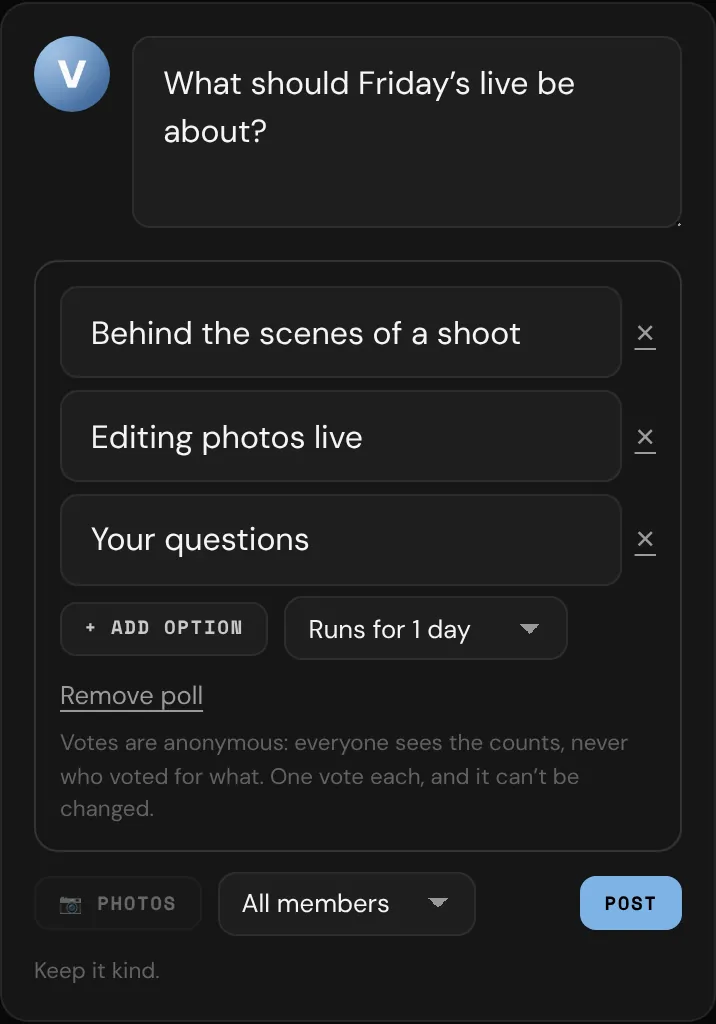
- Tap the box at the top of the feed, then tap 📊 Poll.
- Write your question in the box (it now says Ask a question…).
- Fill in the options: 2 to start with, and + Add option for up to 4. Each can be up to 60 characters, and no two can be the same.
- Choose how long it runs: 1 hour, 6 hours, 1 day, 3 days or 1 week.
- Tap Post.
Tap Remove poll to go back to an ordinary post. A post with a poll can't have photos, and a post with photos can't have a poll.
Voting
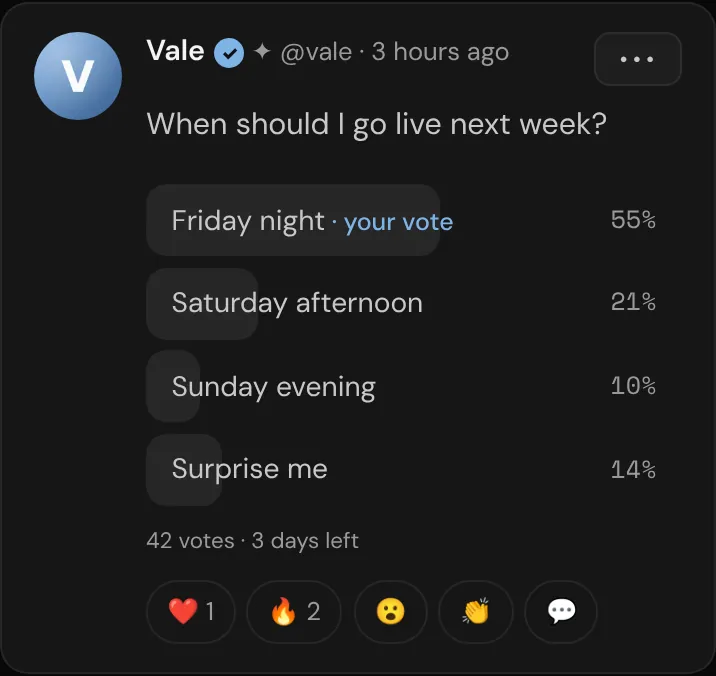
- Tap an option to vote. You get one vote, and it can't be changed.
- Once you've voted, you see the results: each option's share of the votes, with your vote marked.
- Before you vote you see only the options, so the results don't sway you. Whoever asked sees the results all along.
- When the poll ends, everyone sees the final results, with the winner highlighted, and whoever asked gets an alert saying how it ended.
Votes are anonymous. Everyone sees the counts, but nobody (not even whoever asked) sees who voted for what.
A poll in a Followers only post can only be seen, and voted in, by your followers.
Links
Paste a web link and, once you pause typing, bemy.fans shows a preview card for the first link in your post: the page's picture, title and description. A link to a post on X shows its author, text and first photo.
Tap ✕ on the card to post without the preview. The link stays in your text and is still clickable. Posts with photos or a video don't show a link preview.
Mention someone
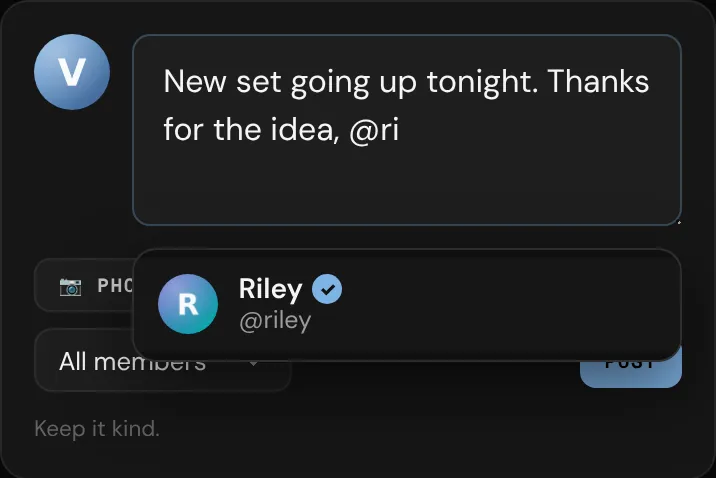
Type @ and the start of a username, then pick the member from the list. Once posted, the @name links to their profile and they get a notification, as long as they can see the post. Someone you mention in a Followers only post who doesn't follow you isn't told.
React
Under every post are four reactions: ❤️, 🔥, 😮 and 👏. Tap one to add it, and tap it again to take it back. You can use more than one on the same post. 💬 opens the comments (see Comments, likes and reactions).
Who can see your posts
- All members: anyone signed in to bemy.fans.
- Followers only: only people who follow you. These posts show 👥 Followers next to the time.
Photos and videos in a post are only shown to people who can see that post.
bemy.fans can also add short posts for you when you earn an achievement, go live or host an event. See Activity in the feed.
Delete a post
Posts can't be edited. To change one, delete it and post again.
- Tap ••• on your post.
- Tap Delete post, then Delete post again to confirm.
The post is removed for everyone, along with its photos, comments and reactions. Copies you shared to X or Bluesky are deleted too (see Share to X and Bluesky). A video goes back to My videos, where it's kept privately for 7 days.
If someone else's post makes you uncomfortable, tap ••• on it to 🚩 Report or ⛔ Block the member.